
All shop owners can create text campaigns in Retention Pro, starting with a blank canvas that you will customize to your needs. Please note that campaign templates can only be accessed through your Account Representative.
First, select Campaigns at the top of your Retention Pro screen.
Then, click on Text Message from the left side menu.
Next, click on the green Add Campaign button at the top right of the page.

This will open a dialog box to create a campaign. As you choose an option through the dialog box the next options will become available.
First, decide whether you want your campaign to send as a one-time campaign or as a continuous campaign.
-
A One-Time Campaign will send a “blast” of messages at once to up to 300 customers. This can be useful for special events, sales, or notifications that you would like to have reach a large number of customers at once.
-
Continuous Campaign sends daily to customers that hit a “trigger” on that particular day. For example, a review follow-up will text customers daily who meet the trigger after a repair order is closed. Service Reminder campaigns also run continuously, sending customers previously recommended services and prompting them to schedule.
To create a One Time Text Campaign select the following options in this order:
-
- One Time Campaign
- Existing Customers
- Text Message
- Enter a Name for the Campaign and click the Create button.
To create a Continuous Text Campaign select the following options in this order:
-
- Continuous Campaign
- Existing Customers
- Text Message
- Enter a Name for the Campaign and click the Create button.
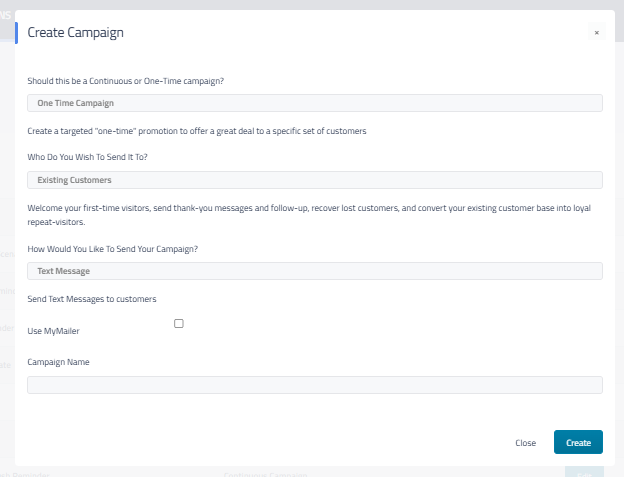
Once you have those options selected and you click the Create button it will open a Campaign Edit screen to create your campaign.
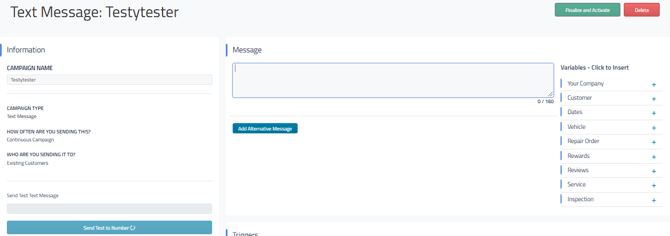
Enter your desired text in the Message area. You can use the Variables to the right of the message entry area to auto-fill specific data into the campaign such as a customer's name or vehicle, see Text Campaign Variables for more information on Variables.
Owner level users can also control whether non-admin users are allowed to modify campaign messaging. On the campaign edit screen for any Retention Pro campaign, Owners will see a toggle labeled "Lock campaign messaging edits for non-admin users." Enabling this toggle restricts Standard/Member users from editing campaign content, though they can still turn campaigns on or off.
Below the message entry area you will see either the Triggers section or the Basic Filters and Additional Filters depending on the type of campaign you selected.
If you are building a continuous campaign you will see the Triggers section. A Trigger is what will prompt the system to send a customer that specific campaign and when. For example, if you set a trigger for Any Visit and set “How long after…” for 2 Days, then the campaign will send to the customer two days after their repair order closes. For more information on Triggers please see Continuous Campaign Triggers
Both Continuous and One Time Campaign will have Basic and Additional Filters which control the customer that he campaign will send to based upon things like the number of days since their last visit, how many times they have been to your shop, and their average spending per visit.
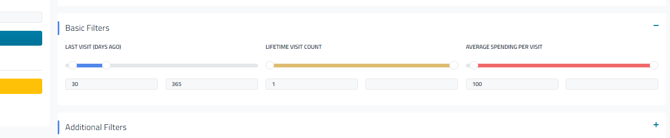
For more information on Filters for One Time Text Campaigns please see Text Message Campaign Basic and Additional Filters
If you are building a one time campaign the current customer list for the campaign based on the Filter settings will be shown below the Filters. It is important to keep in mind that One Time text campaigns can only be sent to a maximum of 300 customers every 48 hours so you will need to make sure that your Filter settings target 300 customers or less. Please see Customer List For One-Time Campaigns
After you have built your campaign you do have the option to send a "test" version to yourself so you can see what the final version will look like when it is sent to your customers. You would just need to enter your cell phone number in the entry field marked Send Test Text Message to the left side of the Edit screen and click the Send Test to Number button.
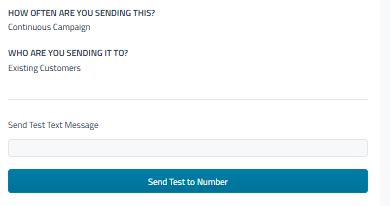
When sending a test version to yourself the system will use the information of a customer from your database to fill in any customer or repair order related variables.
Please note, you are only able to send up to 5 test text messages per hour.
Once you have everything ready to send you just need to scroll to the top of the page and click the green Finalize and Activate button.

The campaign should start sending within the next hour or so, see When Will These Texts Go Out? (One Time Campaigns) for more information on when it will send.