
Once the Miles Virtual Service Advisor is enabled, you can make adjustments to its settings so it more closely matches your shop’s communication style.
For information on enabling the Miles Virtual Service Advisor please see Enabling the Miles Virtual Service Advisor
How To:
- First, go the Management tab at the top of your screen.
- From Management you will want to be on Company Settings which is the first page that comes up when you select Management.
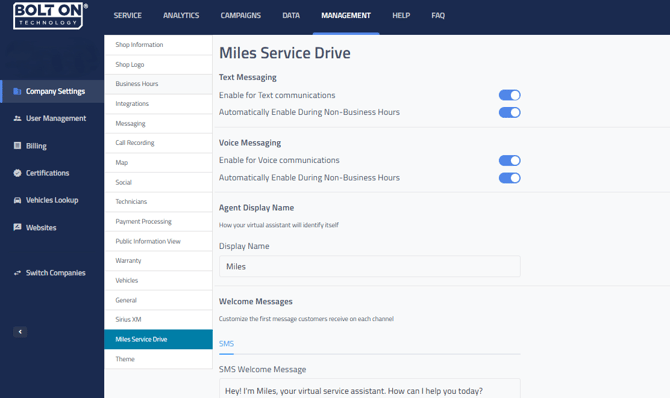
- In the Company Settings menu look for "Miles Service Drive" at the bottom of the menu and click on it.
-
This will show the different options you have available to enable Miles and update it's configurations.
- At the top you will see toggles for the following options:
- Text Messaging
- Enable for Text communications - Answers all text messages
- Automatically Enable During Non-Business Hours - Will answer text messages after your listed business hours in Company Settings
- Voice Messaging
- Enable for Voice communications - Will answer incoming phone calls.
- Automatically Enable During Non-Business Hours - Will answer incoming phone calls after your listed business hours in Company Settings.
- Text Messaging
- If these toggles are blue then Miles is active for those communications. If the toggles are grey then Miles is not active for those communications.
- At the top you will see toggles for the following options:
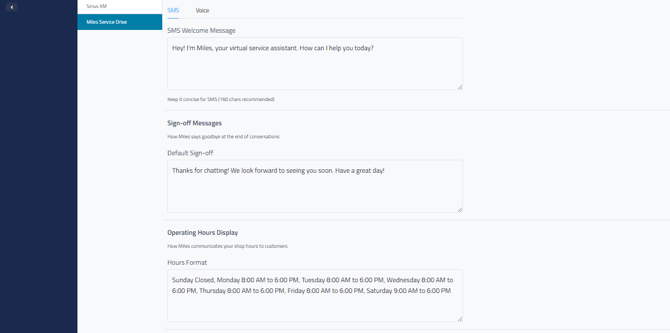
- You can update the Virtual Service Advisor’s display name, customize its text and voice greetings, adjust how it ends text conversations, and control how it shares your shop hours with customers.
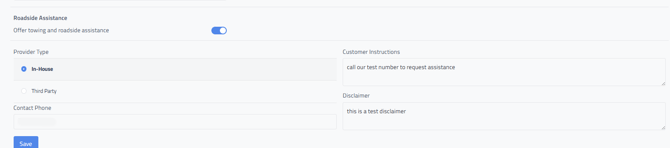
- If your shop offers Roadside Assistance, you can also enter those details here. The Miles Virtual Service Advisor will then be able to share this information with your customers should they need it. You can specify whether the service is handled In-House or by a Third Party, add the contact phone number, outline the steps to request assistance, and include any disclaimer you’d like to display (for example, “additional charges may apply after the first 5 miles”).
- You will need to enter a phone number in the Contact Phone field, even if it’s the same as your main shop number.
-
When you make changes to these configuration they will auto-save. You will see a green notification at the top of your screen indicating if it has saved those changes.
