
Things To Note:
- Appointment Scheduler hours can be set differently from your business hours
- These hours will be used by the online appointment scheduler widget and the Miles Virtual Service Agent. Please see Adding the Appointment Scheduler to Your Website and How Does The Miles Virtual Service Agent Schedule Appointments? for more information.
How To:
- Go to Service at the top of your Retention Pro screen
- Select Appointments from the left side menu
- Click on the gear icon at the top right of the screen

- From the menu options at the top of the Settings page select Scheduler
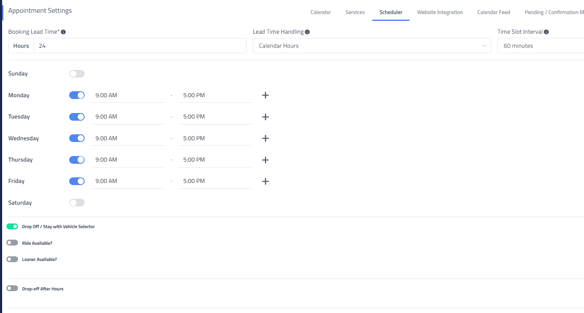
- At the top you will have options for Booking Lead Time, Lead Time Handling, and Time Slot Interval.
- Booking Lead Time - How many hours in advanced an appointment must be scheduled (will default to 24)
- Lead Time Handling - Whether those hours are business hours or calendar hours
- Time Slot Interval - The default interval between appointment time slots
- Below this, you’ll see each day of the week with toggles to mark your shop as open or closed and fields to set the hours when you’ll accept appointments.
- If the toggle is blue that means you will be open that day. If the toggle is grey and no hours are shown that means that your shop will be closed.
- You will set the time for the first appointment time you want to offer in the first box and the cut off time for appointments in the second box.
- If you click the plus sign next to each day this will add additional "lunch hour" blocking to the times available. Each time frame shown for the day are the hours that you will be accepting appointments.
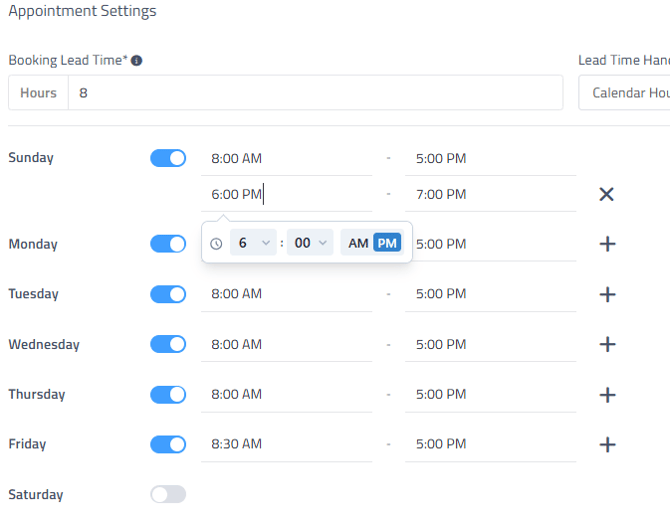
- For example, if you accept appointments from 9:00 a.m. to 6:00 p.m. but are closed for lunch from 1:00 p.m. to 2:00 p.m., enter 9:00 a.m. in the first box and 1:00 p.m. in the second box. Then click the plus sign, and on the next line enter 2:00 p.m. in the first box and 6:00 p.m. in the second box.
- From the menu options at the top of the Settings page select Scheduler
-
- Then you will have options for Drop Off / Stay with Vehicle Selector, Ride Available, Loaner Available, and Drop Off After Hours.
- If you want different services to have specific appointment time slots, click the Services tab at the top of the Appointment Settings page.

- From the Services section you can set how long you would like the appointment to be scheduled for based on the service that the customer is requesting.