
To get started, open the Edit screen for the campaign you want to schedule. At the top of your screen, click Campaigns, then choose Text Message, Email, or Direct Mail from the menu on the left. Next, locate your campaign in the list and click Edit to open it.
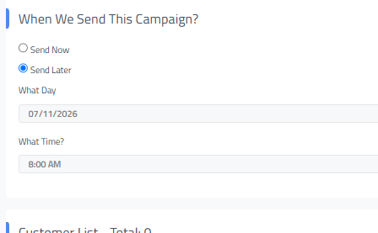
Just below the Basic and Additional Filters section of your text campaign, you will find an area labeled "When We Send This Campaign?"
To schedule your campaign for a future date, select "Send Later" and specify your desired date and time for the campaign to be sent.

Next, go to the top of the page and click the Finalize and Schedule button in the top right corner. This action will add your campaign to the sending queue so it goes out at the date and time you selected.

Please note, if you choose a time outside your business hours we will not send the campaign until your posted open hours.
Return to Text Campaigns