
It is important to note that depending on your shop's configuration there may need to be additional steps done to establish a connection. Please feel free to reach out to our Data Support team and they will be able to assist you further. Click Here for assistance
The following steps must be performed on the host/server computer to connect your Navex system to Retention Pro.
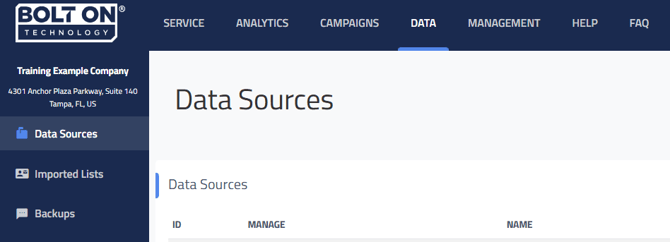
- Select Data at the top of your Retention Pro screen
- Click on DATA SOURCES from the left side menu
-
Click on “+Add Data Source” at the top right
-
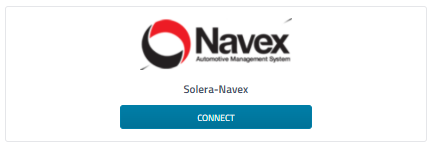
Find Solera-Navex in the shop management system list and click on the Connect button below it.
-
Once on the Navex page click Download at the bottom.
-
This will download a file called myshopmanagersetup.msi. The file will be displayed on your screen and will need to be opened. Depending on your browser the downloaded file will be located in different places.
-
Google Chrome: It will be in a bar on the bottom of the screen on the far left
-
Mozilla Firefox: You will have to click Save File, then click on the down arrow in the top right side
-
Microsoft Edge or Internet Explorer: Click on the down arrow in the top right side then click Open File
-
Older versions of Internet Explorer: There will be a “Run” and “Save” button towards the middle of the screen
-
If you are unable to find the download after clicking it, press the Control and the J key at the same time to display your downloads. You can open myshopmanager.msi from this page.
-
-
Now that you have downloaded the installer, you need to click on it and run it.
You will see Welcome to the MyShopManager Setup Wizard.-
Click Next
-
Click Next: Don’t change anything
-
Click Next again
-
The computer may ask if it’s okay for this app to make changes
-
Click YES
-
-
When you see MyShopManager has been successfully installed you may click the close button.
-
For any questions or concerns please reach out to our Support team and they will be able to assist you further! Click Here for assistance