
The following steps must be performed on the host/server computer to connect your MaxxTraxx system to Retention Pro.
-
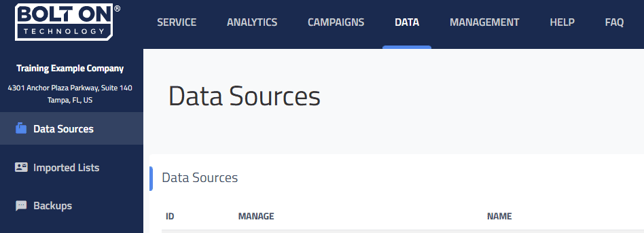
Select Data at the top of your Retention Pro screen
-
Click on DATA SOURCES from the left side menu
-
Click on “+Add Data Source” at the top right of the screen
-
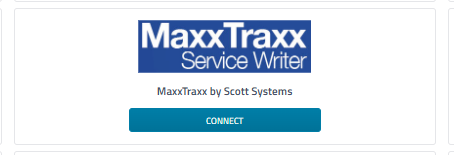
Find MaxxTraxx by Scott Systems in the shop management system list and click on the Connect button below it.
-
Once on the MaxxTraxx page click Download at the bottom.
-
This will download a file called myshopmanagersetup.msi. The file will be displayed on your screen and will need to be opened. Depending on your browser the downloaded file will be located in different places.
-
Google Chrome: It will be in a bar on the bottom of the screen on the far left
-
Mozilla Firefox: You will have to click Save File, then click on the down arrow in the top right side
-
Microsoft Edge or Internet Explorer: Click on the down arrow in the top right side then click Open File
-
Older versions of Internet Explorer: There will be a “Run” and “Save” button towards the middle of the screen
-
If you are unable to find the download after clicking it, press the Control and the J key at the same time to display your downloads. You can open myshopmanager.msi from this page.
-
-
Now that you have downloaded the installer, you need to click on it and run it.
You will see Welcome to the MyShopManager Setup Wizard.-
Click Next
-
Click Next: Don’t change anything
-
Click Next again
-
The computer may ask if it’s okay for this app to make changes
-
Click YES
-
-
When you see MyShopManager has been successfully installed you may click the close button.
-
For any questions or concerns please reach out to our Support team and they will be able to assist you Click Here for assistance