
For information on the Standard Editor please see Standard Email Editor
To access the advanced email editor click this button on the top of any email campaign
Content
With the content section of advanced editor you can drag and drop columns, buttons, images and more.
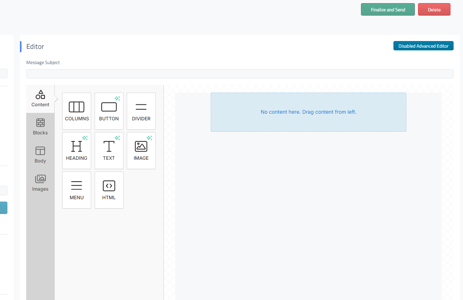

Once you have dragged over what you want you can click that box and a sub menu will open on the side.
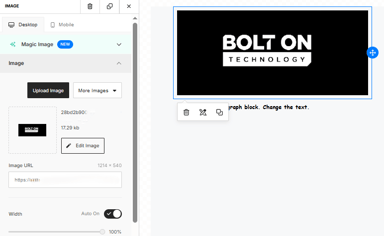

In this example for image, you can add an image, add an action and more. Each content piece will have different options for you to use. You can click between Desktop and Mobile if you would like to change design elements (such as alignment and size) based on the device the email is being viewed on.
Blocks
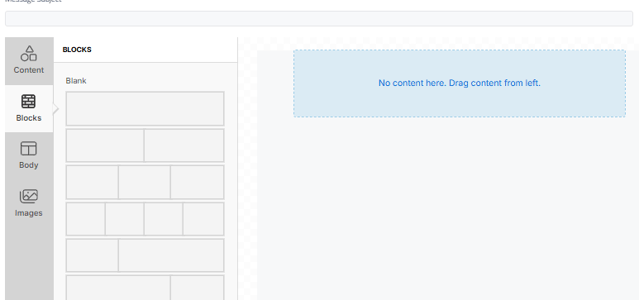
Blocks will allow you to better control the layout of your email campaign. If you want to have text next to an image or three images next to each other you can select the Blocks option that will help you achieve that format.
Body
Under the option for Body you will be able to control the total look and feel of your email campaign. You can change the text, background color, link colors, and the preheader text.
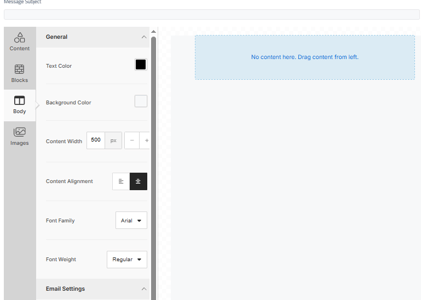
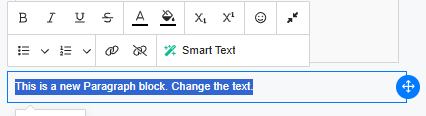
In addition to the text options you have available in the Body section you can also make text adjustments on individual content pieces. When you click on the item you will see text options for style, color, emojis, and formatting.
Images
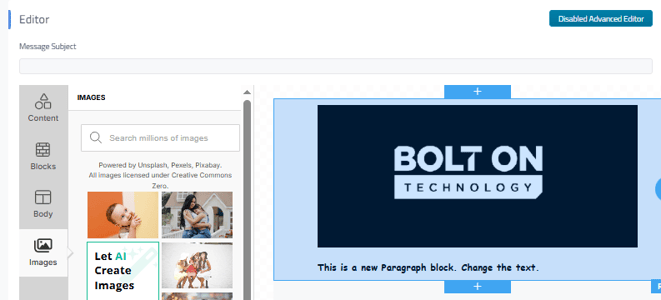
The Images section will allow you to search and browse stock images that are available for you to use and add to your campaign.
View Options
At the bottom of the editor you will see this image for your view options.
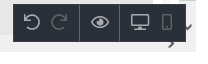

The options available are: Undo, Redo, Preview, Desktop view and Mobile view
Email campaigns created with the Advanced Email Editor do not include a header or footer by default, so you’ll need to add those elements to your design manually. An unsubscribe link is automatically included in every campaign.
Return to the Main Article Email Campaign Templates